Overview
SyncPenguin is a universal, simple to use, and highly customizable two-way and one-way data syncing solution.
With our service you can easily set up a two-way or one-way syncing of your Xero inventory levels or customer contact data with a variety of third-party apps and services, at affordable price, high customizations possibility, and excellent support.
You get:
- Out of the box two-way, one-way, one-to-many or many-to-one syncing that works right after connecting your apps.
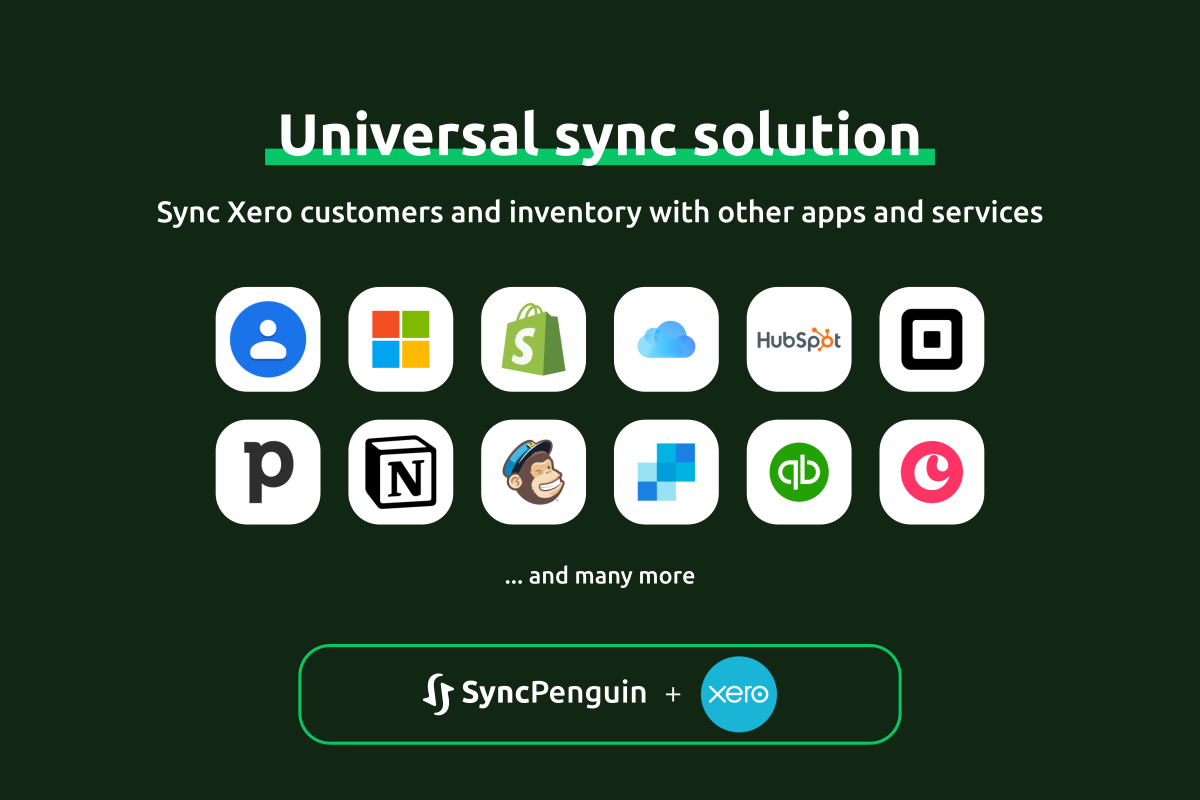
- Ability to sync Xero inventory levels (quantities) with stores like Square, Shopify, WooCommerce, BigCommerce, Squarespace, and more.
- Ability to sync Xero customer data with Microsoft 365, Google Contacts, iCloud Contacts, Mailchimp, SendGrid, GALs, and many more third-party CRMs and email marketing tools.
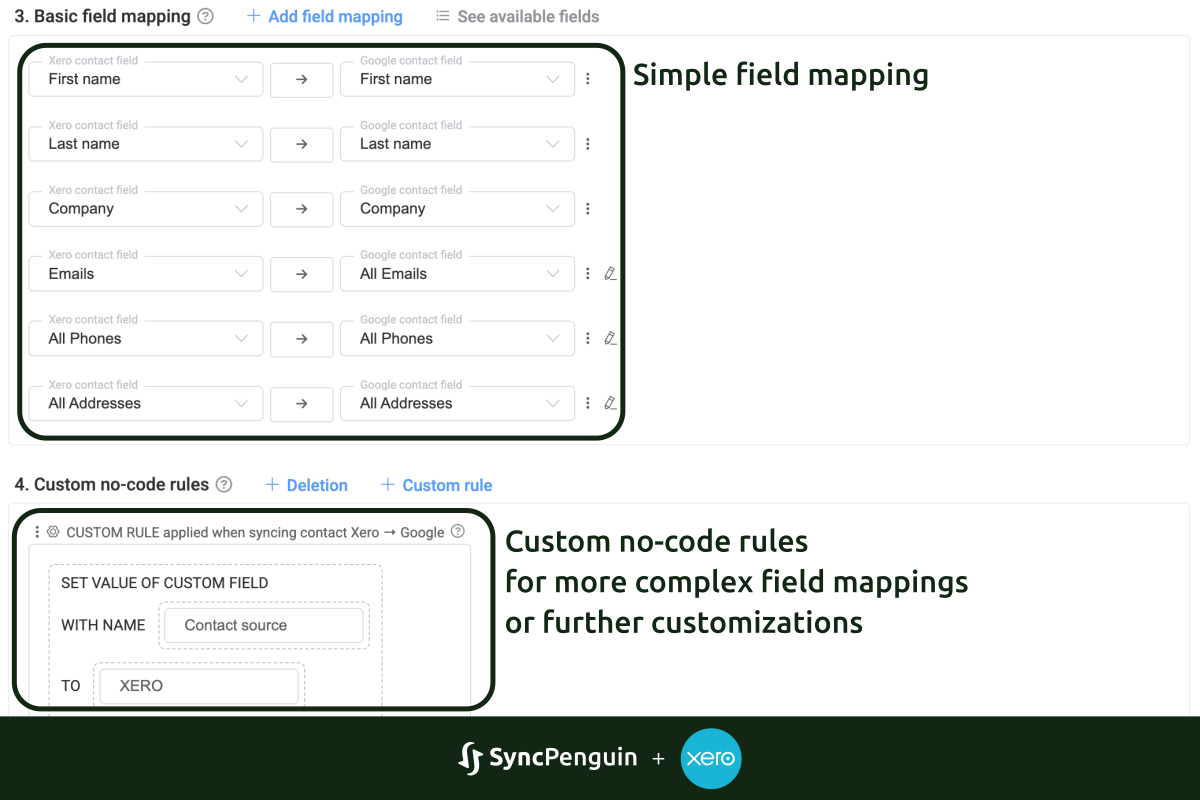
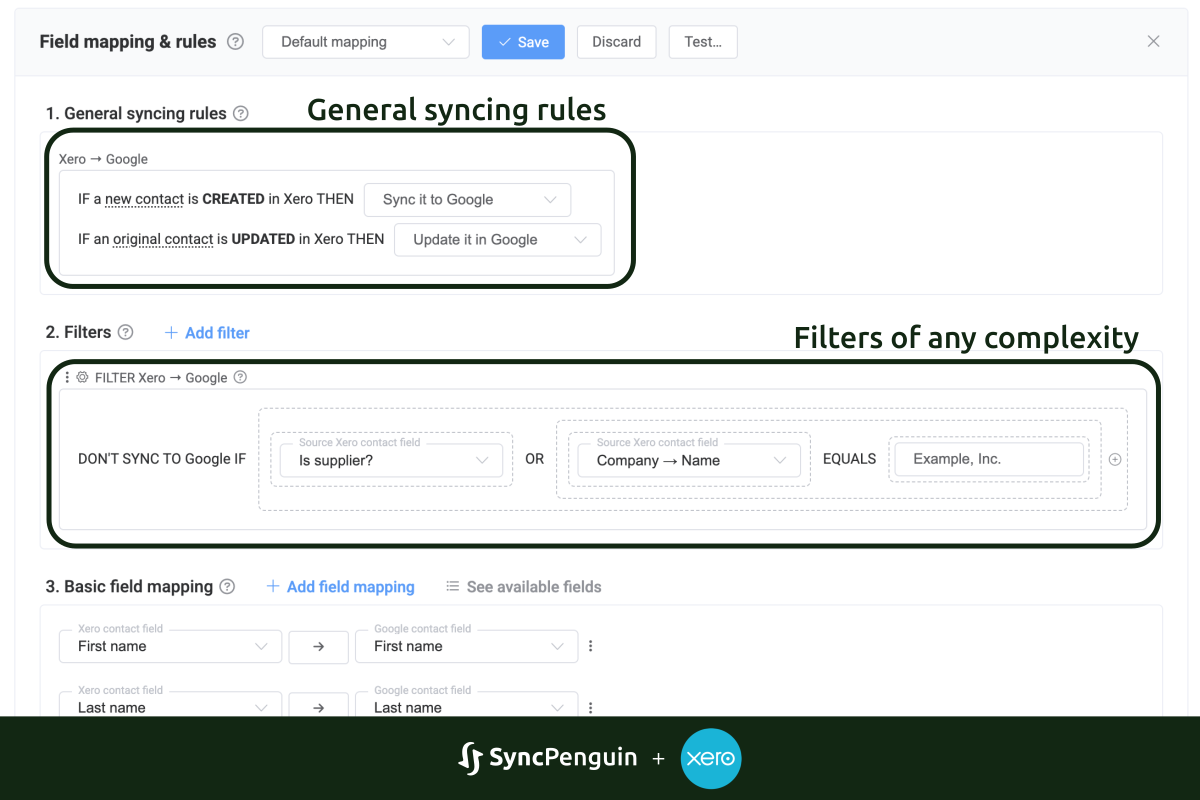
- A simple yet very flexible interface to customize your syncing process with field mappings, filters, and custom no-code rules of any complexity.
- Initial data sync (migration) and automatic continuous syncing of data changes.
Join over 2,000 happy customers that have been leveraging SyncPenguin to improve their business productivity!
We provide a fully-free 14-day trial and support to ensure the syncing works as you expect before your commitment.
SyncPenguin + Xero
SyncPenguin currently supports two Xero connectors:
Xero Inventory Quantities connector allows you to sync inventory levels (quantities) for products with matching SKUs/codes. Inventory adjustments are made via zero-total purchase invoices and credit notes. Please note that further item data (e.g. pricing, descriptions, etc.) is not synced.
Xero Customers connector works with your company customer and contact data and can two-way sync it with any other supported contact service provider. All basic contact information is included in the default field mapping, but you can adjust it using filters, additional field mappings, or custom no-code rules of any complexity.
Getting started
To get started, first create a SyncPenguin account by signing up directly using your Xero user account or via email address and password. Your free 14-day trial starts as soon as the account is created. Feel free to contact us for an extension to the free trial period if you need more time for testing.
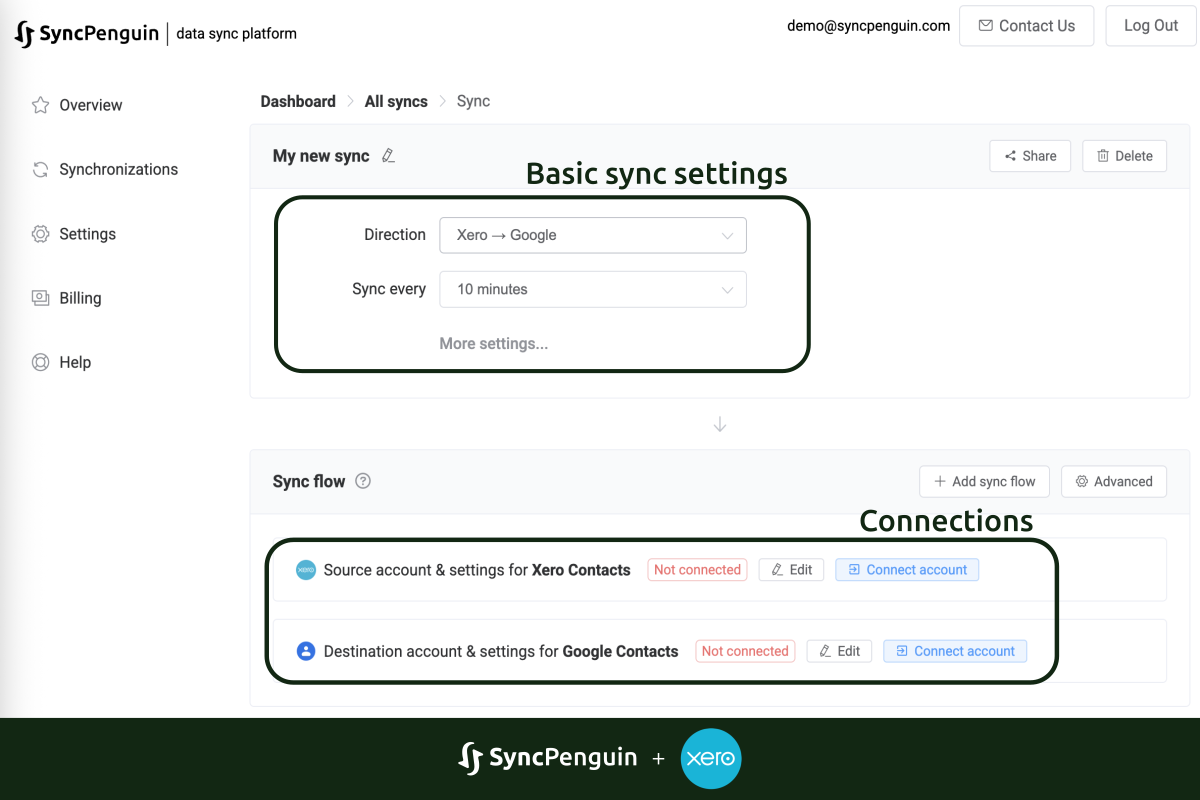
Once you are logged in to the SyncPenguin dashboard, the next step is to create a sync process in the Synchronizations section of the dashboard (left menu). Be sure to select the correct connectors. If any questions or uncertainties occur, feel free to contact our support staff for assistance.