Overview
BoostSync for ClickUp connects the work your team manages in ClickUp with the financial records you keep in Xero.
Built by Boost Plugins, the team behind the established monday.com and Xero integration, it brings familiar accounting workflows to ClickUp tasks and lists. Give your delivery, operations and finance teams the context they need without repeatedly copying information between systems.
Keep financial context alongside your tasks
- Link existing Xero invoices, bills, quotes and purchase orders to the relevant ClickUp tasks.
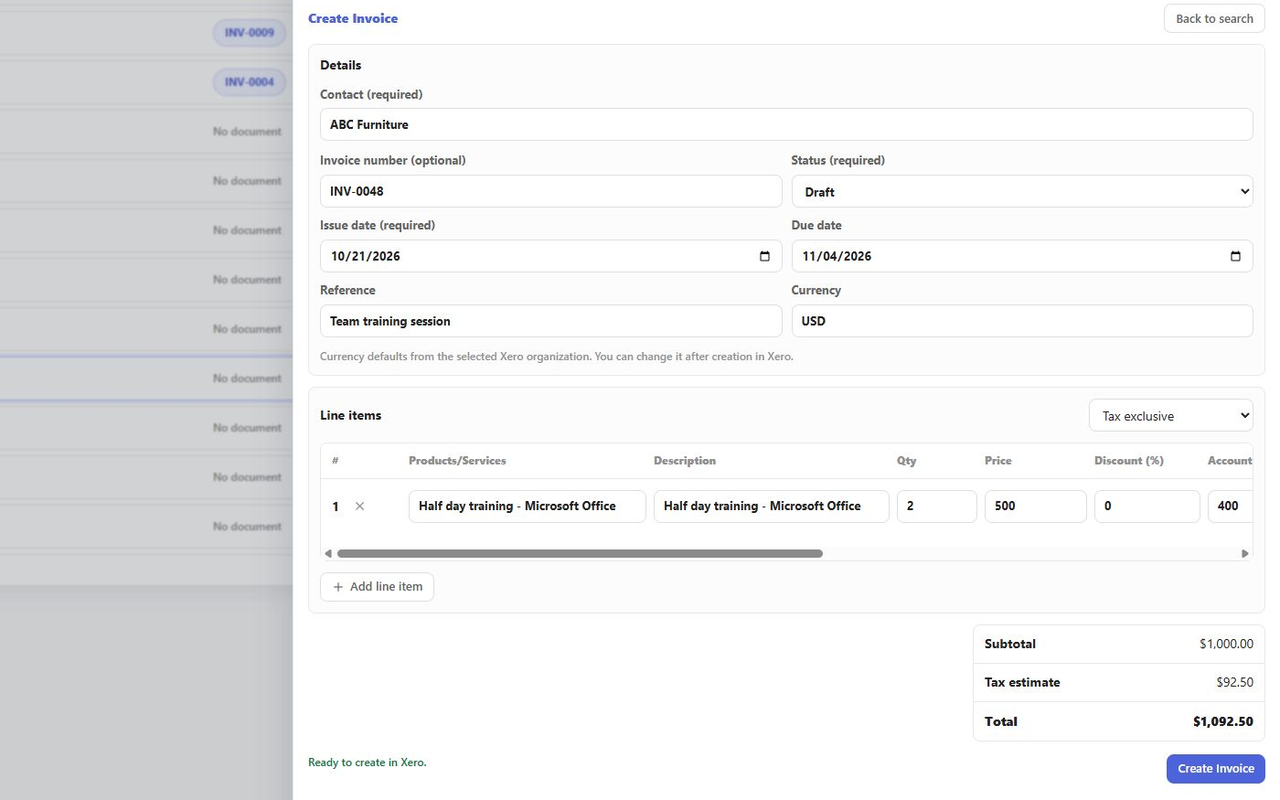
- Create new documents through BoostSync using existing Xero contacts, products and accounting information.
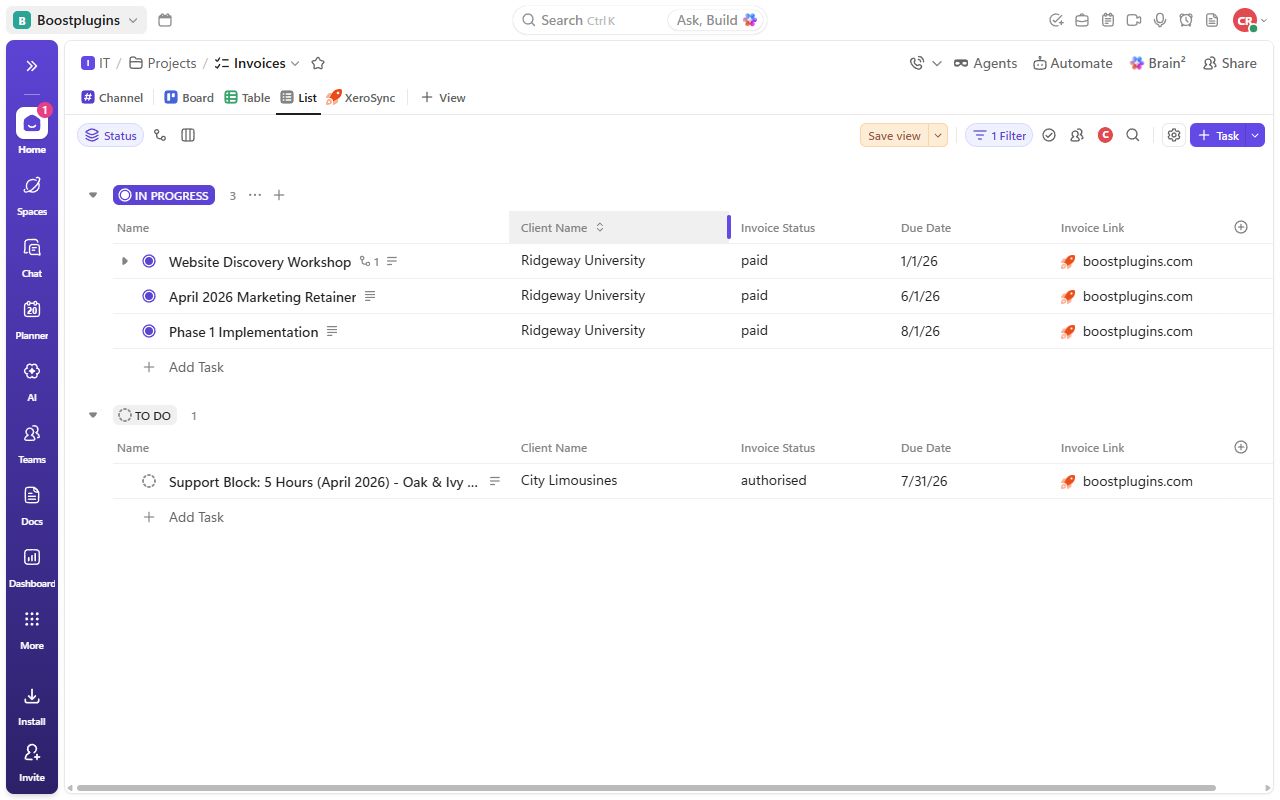
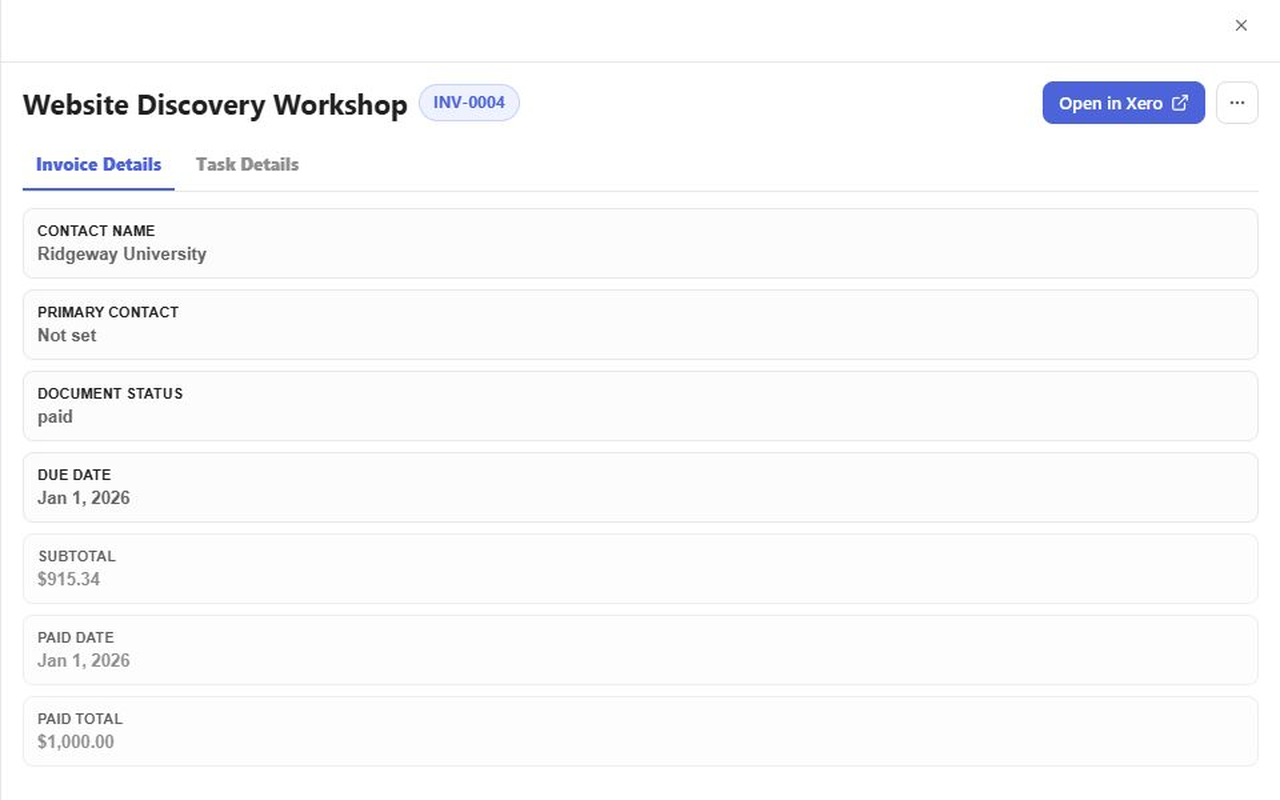
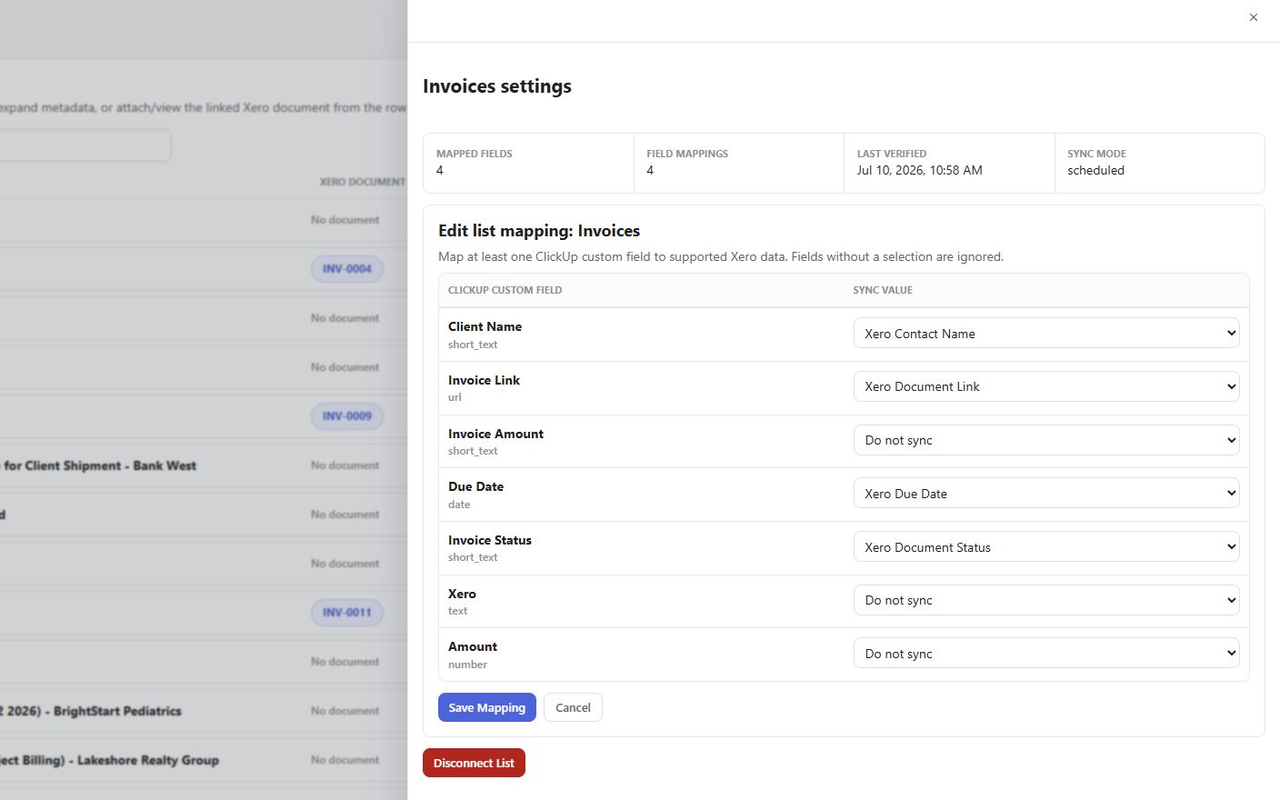
- Show selected details such as document status, due dates, subtotals and payment information in ClickUp custom fields.
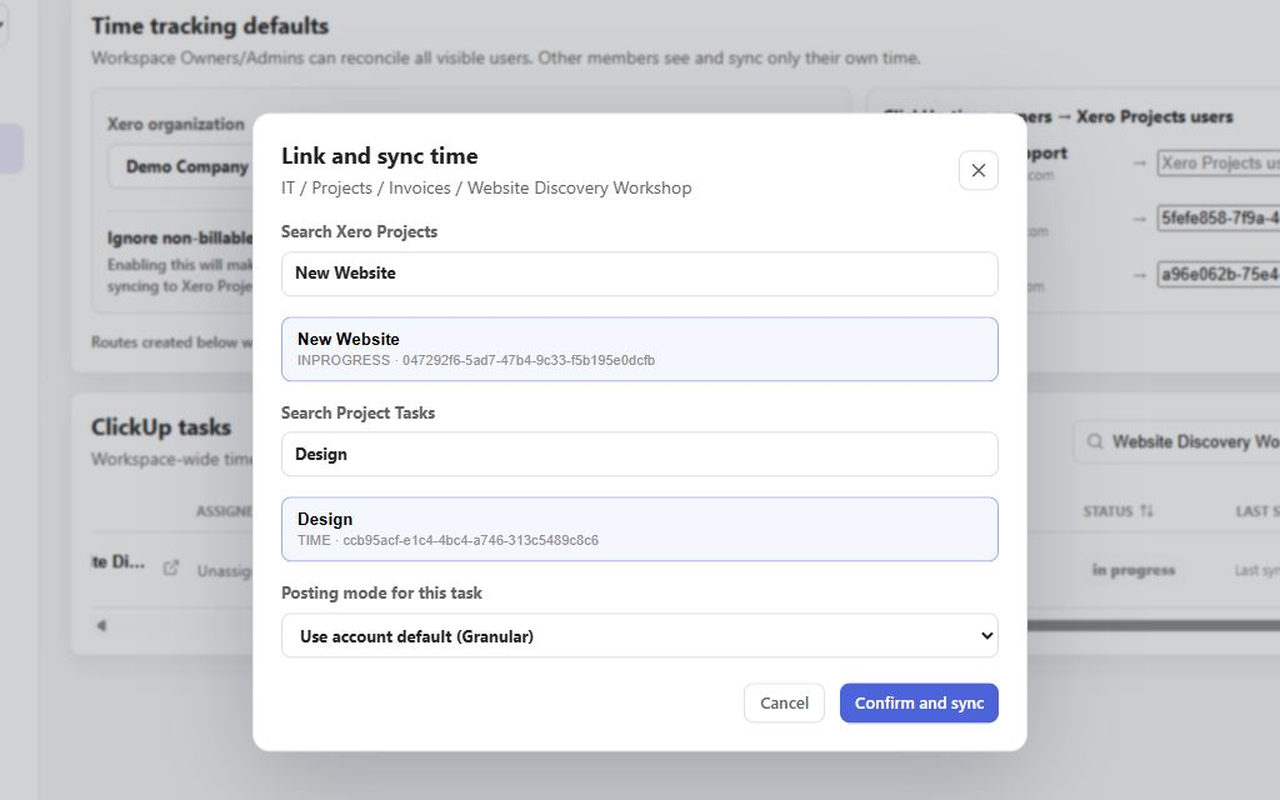
- Find the right Xero record with searchable document, contact and product selections.
Work in the tools your team already uses
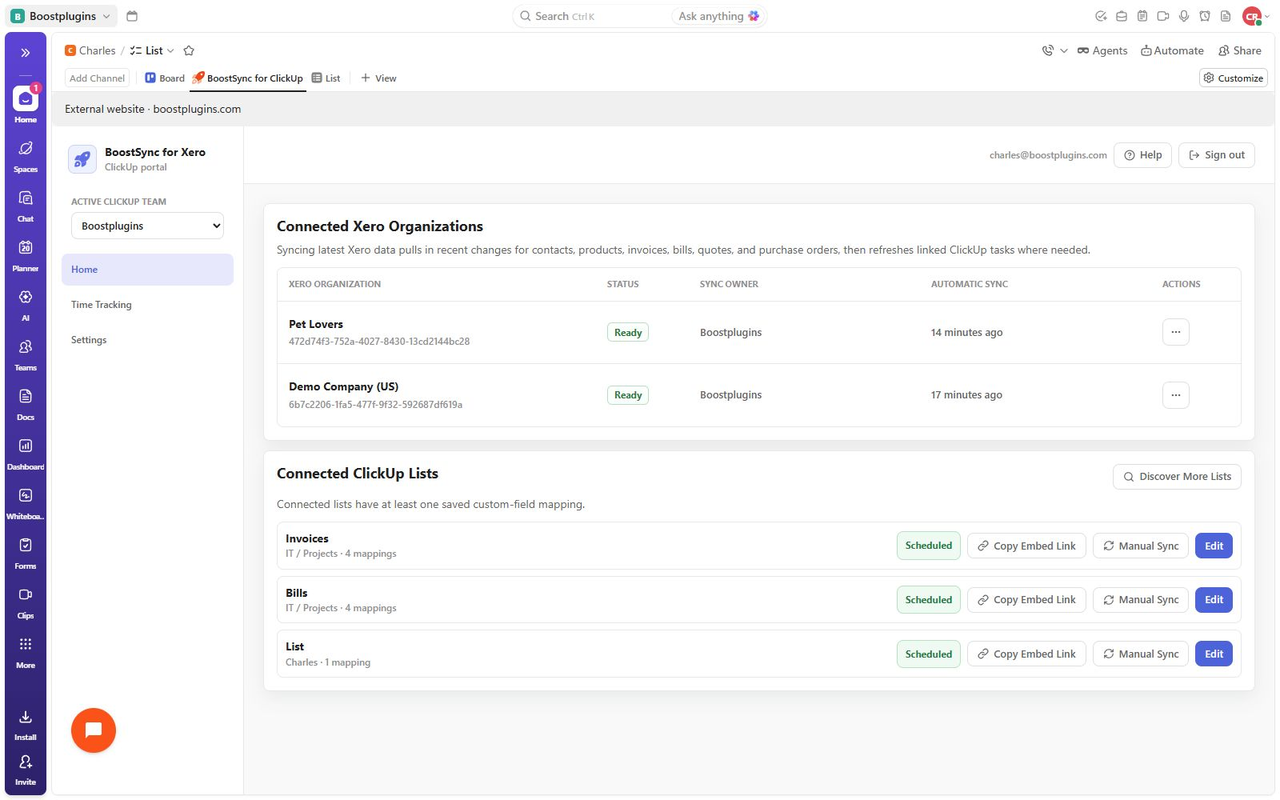
Open BoostSync in its web portal or add an embedded list view to ClickUp. Choose the lists and custom fields that fit your workflow, and select the appropriate connected Xero organisation when working with its records.
Background updates help keep linked task details current, and a manual refresh is available when you need to check the latest information.
Get help with setup
Follow the ClickUp quickstart guide or contact Boost Plugins for help connecting your accounts and configuring your first list. Use the chat option in the app.
BoostSync for ClickUp + Xero
BoostSync connects your Xero organisation and ClickUp workspace through their authorization flows. You choose the ClickUp lists to connect and map selected Xero details to their custom fields.
From Xero to your ClickUp workflow
Search for existing invoices, bills, quotes and purchase orders, then link the appropriate document to a ClickUp task. BoostSync reads Xero contacts and products to help you select the right customer or supplier and line items when creating documents.
For linked tasks, mapped custom fields can show the document link, contact name and email, status, due date, subtotal, paid date and amount paid, where applicable. Background synchronization refreshes these details from Xero; you can also request a manual refresh.
Create Xero documents from the app
Open a task in BoostSync and create a sales invoice, bill, quote or purchase order using the connected organisation's information. The new document is created in Xero and linked to that task.
Configuration and scope
Use the portal directly or embed the connected list view in ClickUp. Select the correct Xero organisation and configure the fields that matter to your team.
Each task links to one Xero document. Document creation is an action you take in the app; background synchronization brings selected Xero values back to linked tasks. Xero remains the source for the financial record, including its accounting and payment information.
Pricing plans
This app includes a free 90 day trial
Default
- Create, edit, and view Xero data inside ClickUp
- Sync due dates, subtotals, contacts, and more into custom fields
Getting started
Click “Get this app” to begin setting up BoostSync for ClickUp. Have access to the ClickUp workspace and Xero organisation you want to connect.
1. Connect your accounts
Follow the sign-in and authorization steps to connect ClickUp and Xero. Select the correct ClickUp workspace and Xero organisation for the records your team will use.
2. Choose a ClickUp list
Select the existing list you want to connect. Configure its custom-field mappings so the Xero document link and the financial details you need appear alongside your tasks.
3. Open the list in ClickUp
You can work directly in the BoostSync portal. To keep the view within ClickUp, copy the list's embed link and add it as a website/embed view in your ClickUp workspace.
4. Link or create your first document
Open a task in the connected list. Search for an existing Xero invoice, bill, quote or purchase order to link, or create a new document using your Xero contacts and products.
5. Check the result
Confirm the task is linked to the correct Xero document and that the mapped values appear as expected. Background updates keep selected details current, and a manual refresh is available.
For illustrated instructions, follow the setup walkthrough linked on this listing. Use the in-app chat if you would like help configuring your first list.